
How Your AI Receptionist Answers Business Calls
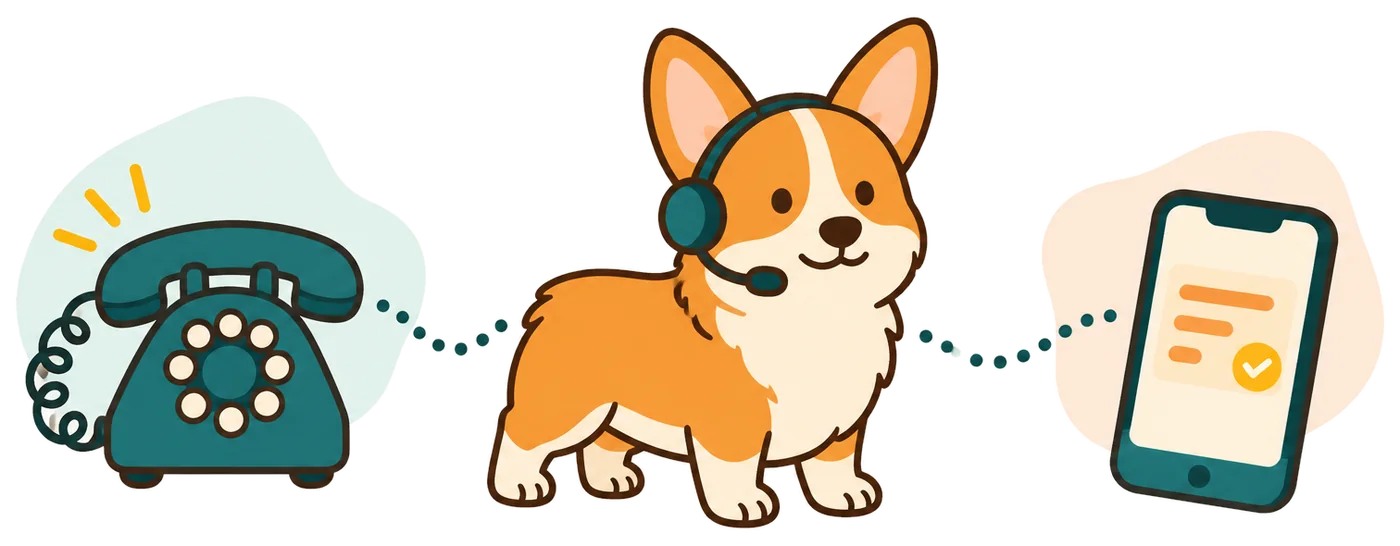
How it works in four steps
- Choose number forwarding Keep your existing business number and select all calls, no-answer, busy or after-hours coverage for your receptionist.
- Your AI answers Your receptionist answers as your business, asks intake questions and follows your rules for messages and urgent calls.
- Receive alerts and bookings Get email and app push summaries, with appointments booked into Google Calendar when you choose booking.
- Test, then go live Make a test call, check the result and enable forwarding when your setup is ready for callers.
Choose Which Calls to Forward From Your Number
You can forward all calls or use your receptionist for no-answer, busy or after-hours coverage. Keep your existing business number and choose the forwarding arrangement that fits your workday.
- All callsSend incoming business calls to your receptionist throughout the day.
- Overflow callsUse no-answer or busy forwarding while your team handles other work.
- After closingChoose after-hours forwarding so callers can leave useful details at night.
Learn more
Forwarding routes calls from your existing number to the local number we provide. We give you instructions for your carrier or phone system, and you make a test call before going live.
A cleaning owner might answer during office hours and forward unanswered calls while working at a client's property. A repair shop might choose after-hours coverage so the team can review messages the next morning.
The forwarding choices available depend on your carrier or phone system. Decide when you want help, then use the guide to configure that routing. Visit the early-access signup page to join while you wait for trials to open.
Hear What Your Receptionist Says and Asks
Your receptionist introduces itself as a virtual assistant, gives the recording notice and asks questions based on your business. It takes messages, flags urgency and follows the call handling rules you set.
- Clear greetingCallers hear the virtual assistant introduction and recording notice at the start.
- Relevant questionsYour receptionist asks about the service needed and details for your trade.
- Urgent handoffYour on-call person hears a summary before accepting a warm transfer.
Learn more
The onboarding chat covers your services, service area, hours, price policy and urgent contacts. Your website supplies business information too. A pool service can define which work it handles, while a moving company can explain the areas it serves.
On a call, your receptionist gathers the details your trade needs. It can book into Google Calendar or take a message for your callback. Callers can speak English or Spanish and switch languages during the conversation.
For urgent calls, choose a warm transfer or a page to your on-call person in your chosen order. On a warm transfer, that person hears a short summary and presses 1 to accept. Your receptionist is not an emergency service.
Get Call Details by Email and App Push
You receive an email and app push notification for each call, with a summary, urgency tag, transcript and recording. The dashboard keeps call details, usage and settings together for review.
- 1Call alertsEmail and app push bring the summary and urgency tag to you.
- 2Full contextOpen the transcript or recording when you need more than a summary.
- 3Daily reviewA digest email helps you review the day's calls and plan callbacks.
Learn more
Call alerts give you the message without requiring you to listen to a recording first. You can read the summary, check its urgency tag and open the transcript when a detail needs another look.
If you choose appointment booking, your receptionist books into Google Calendar. If you prefer to arrange the appointment yourself, it takes the details for your callback instead. Your dashboard also shows call history and usage, so you can review how the setup is working.
Direct connections to field-service and CRM software are planned by demand. For now, use the summaries to enter the details your team needs in those tools. The software connection overview explains the current options.
Test Your Setup and Change It as Your Business Changes
Make a test call before you turn on forwarding, then review the greeting, intake and outcome. Later, tell the AI in plain words when your services, hours or urgent contacts change.
- Try a routine callAsk about your services and check the details collected.
- Check urgent routingTest the handoff to the person you have chosen for urgent calls.
- Update in plain wordsTell the AI when your hours or business policies change.
Learn more
A useful test follows the same path as a real caller. Ask for a service you offer, give the requested details and check the summary afterward. Then try a question about work you do not handle.
Test urgent routing with the contact you selected. If you chose booking, check that the appointment reaches Google Calendar. Correct business information or call rules before enabling forwarding.
After launch, review summaries and recordings to spot anything that needs changing. The AI can make mistakes, so keep a backup way to reach you. When your hours or on-call contact changes, tell the AI the new details and test the affected call path again.
Questions
Can I keep my current business phone number?
Yes. You keep the number your customers already use and forward calls to the local number we provide. Choose all calls, no-answer, busy or after-hours forwarding as supported by your phone setup. We provide a forwarding guide and a test call before you go live.
How long does setting up the receptionist take?
Setup includes an onboarding chat of about 10-15 questions, your forwarding instructions and a test call. Have your services, hours, service area and urgent contacts ready. The time depends on how much detail you need to supply and how your carrier handles forwarding.
Will callers know they are talking to AI?
Yes. Your receptionist says it is a virtual assistant and that the call is recorded at the beginning of the conversation. These notices stay on. You can use the browser demo to hear the introduction and experience the questions a caller would hear.
What happens if it gets a business detail wrong?
Review the call summary, transcript or recording to identify the detail that needs correcting. Tell the AI the right information in plain words, then test that question again. Keep a backup contact available and review call outcomes, because the AI can make mistakes.
Can it transfer urgent calls to my on-call person?
Yes. You define what counts as urgent and choose the people to contact in order. With a warm transfer, the recipient hears a short summary and presses 1 to take the call. You can also choose a page to your on-call person.
Where do I see messages after calls finish?
Your call alert arrives by email and app push notification with a summary, urgency tag, transcript and recording. You can also review calls in the dashboard. A daily digest email helps you look through the day's messages and decide which callers need your attention next.
Try a Call Before You Set Up Forwarding
Open the browser demo without signing up. When you are ready, join early access to hear when free trials open so you can build the call rules for your business.